
Payout Management
Payout is the process of managing and disbursing payments to eligible recipients. On the payout page, we can view all successfully managed payments. The goal of payout is to ensure that funds or assets sent reach the correct destination address accurately and on time.
On this page, we can see payments awaiting review under the 'Payments for Review' tab. Here's how to make a payout request:
Create Payout Request
-
Open the Lexupay website.
-
Open the Payout page.

-
On the Payments for Review tab, checkmark one or several payments that you wish to request for payout.

-
Next, under Batch actions, select Create Payout Request.

-
In the Create Payout Request dialog, enter the following information:

-
Destination Network/Chain (Required): Choose the destination network or blockchain for the transaction. Available options include:
- Polygon Mainnet
- Ethereum Mainnet
- Arbitrum One
- Mantle
- Metis Andromeda Mainnet
Choosing the correct network is crucial to ensure that the transaction reaches the intended destination.
-
Destination Address (Required): Enter the specific address on the destination network where the asset or transaction will be sent. This address typically consists of a long string of alphanumeric characters unique to each user or account on that network. Ensure the correct destination address to prevent loss of assets or delivery errors.
-
**Memo / Statement Descriptor (Optional): **Add a note or brief description to provide additional information about the purpose or reason for the transaction. Memos are often used in crypto transactions.
-
Description (Optional): Provide a more detailed explanation that can aid in tracking or future reference. This description is often used for internal records or to clarify the purpose of the transaction to relevant parties.
-
Select Create. If successful, the payment will appear in the Payouts Requested list with a status of Pending.

Canceling a Payout Request
-
Open the Lexupay website.
-
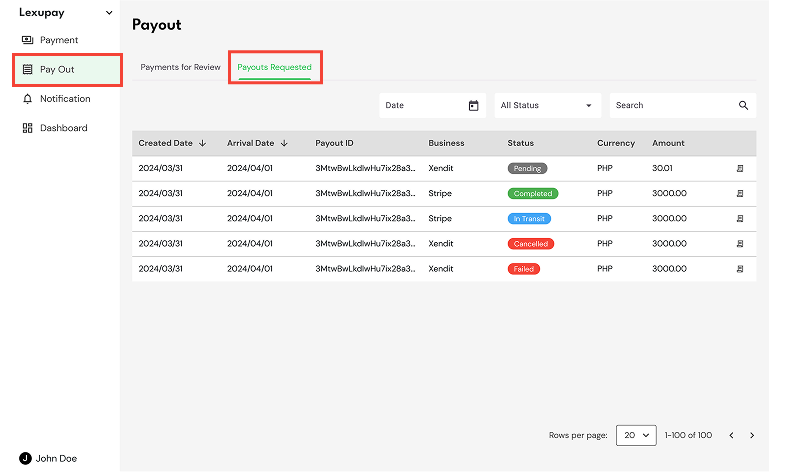
Open the Payout page and select the Payouts Requested tab.
-
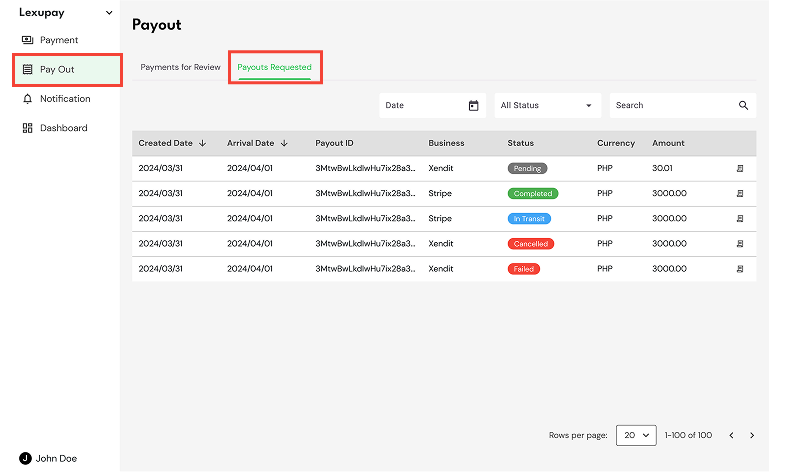
Select the payout that has a status of Pending.
-
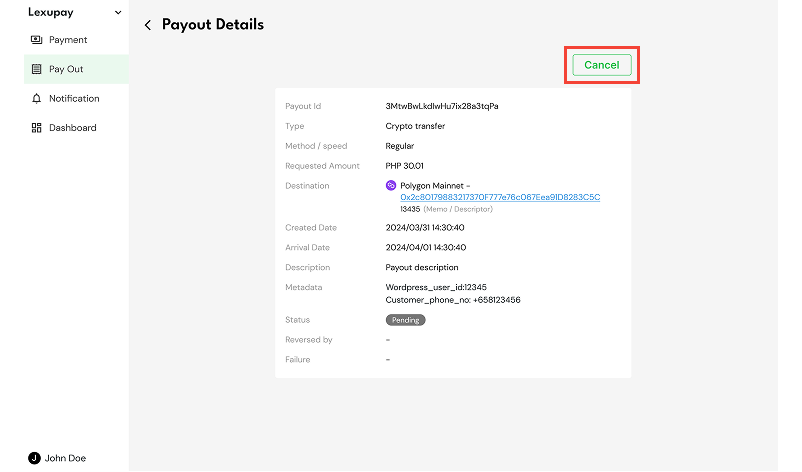
On the Payout Details page, choose Cancel.
-
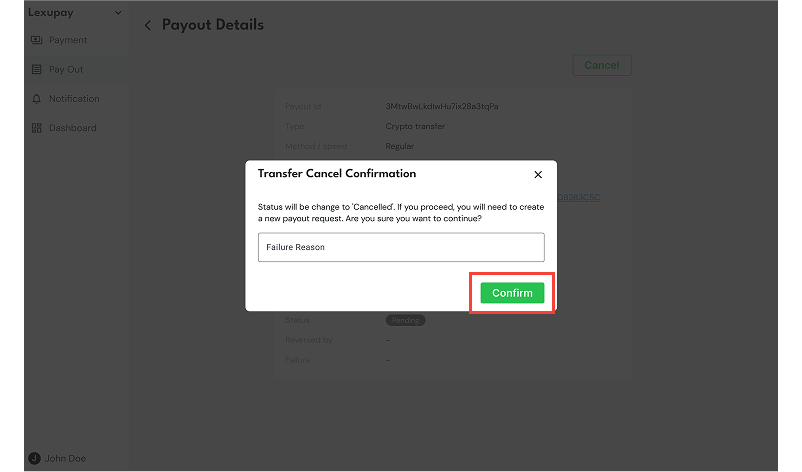
In the Transfer Cancel Confirmation dialog, enter the cancellation reason, then select Cancel.
-
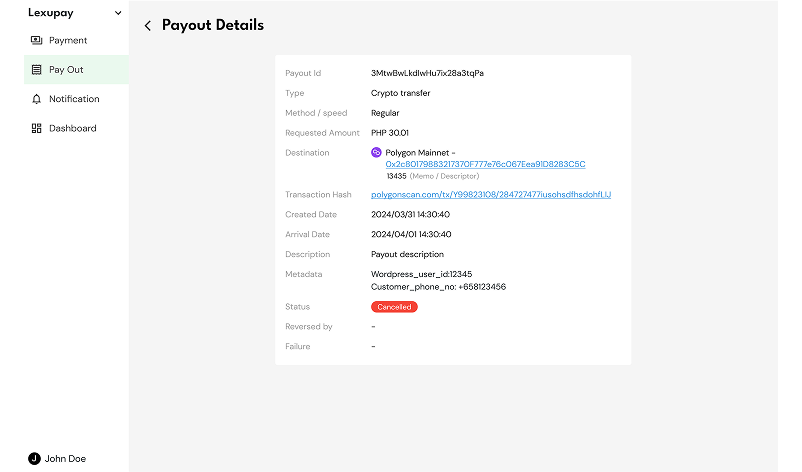
The payment transfer has been successfully cancelled, and its status will change to Cancelled.
Guide to Printing Payout
-
Open the Lexupay website.
-
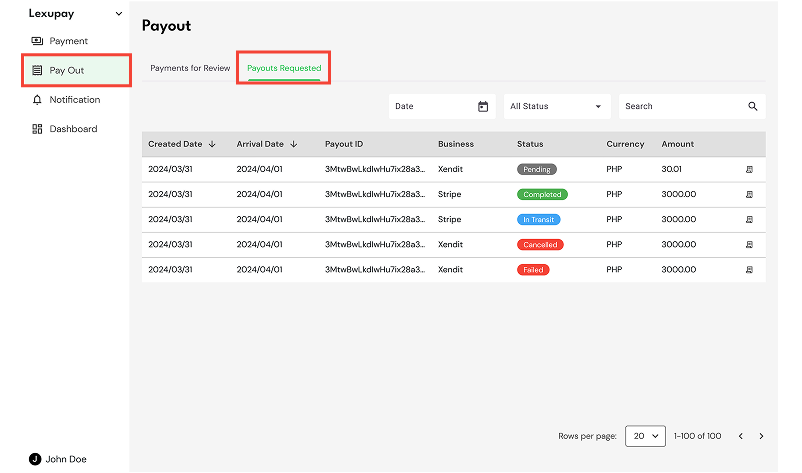
Open the Payout page and select the Payouts Requested tab.
-
Select the Print Payout option for one of the payments.

-
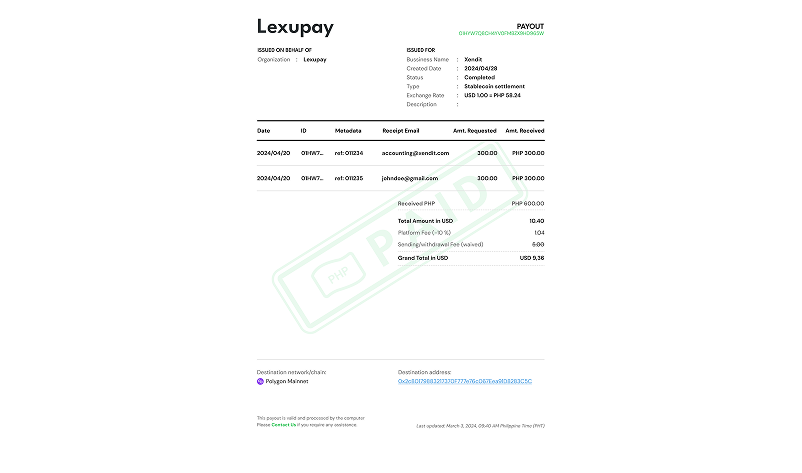
The payout has been successfully downloaded, and the file Payout_2024/04/21.pdf can be opened on our computer.
Detailed Payout Information
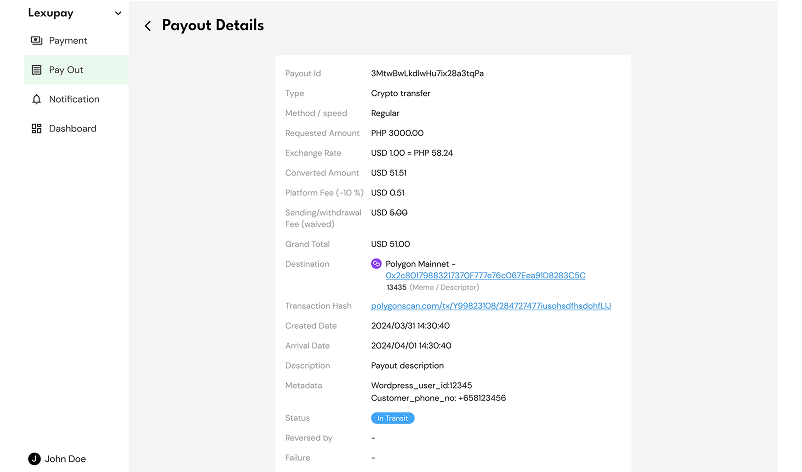
Here is the display of Payout Details based on the payment status:
-
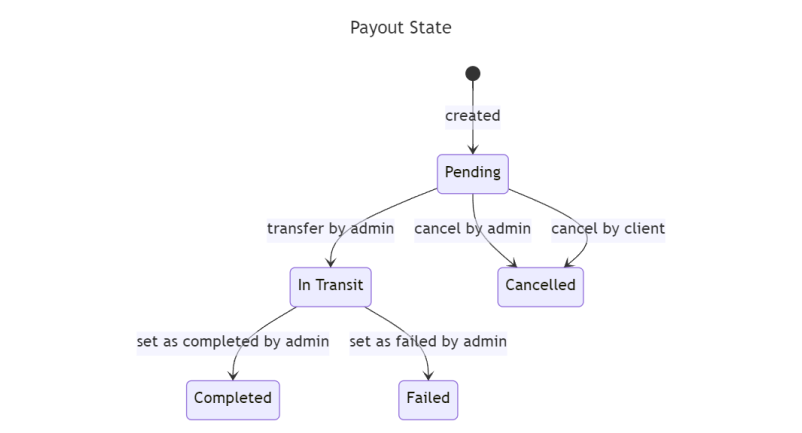
Pending: The payout status immediately after creation. At this stage, we can cancel the payment transfer by selecting Cancel.

-
**In Transit: **The payout status when the payment has been transferred by the admin in the system.
-
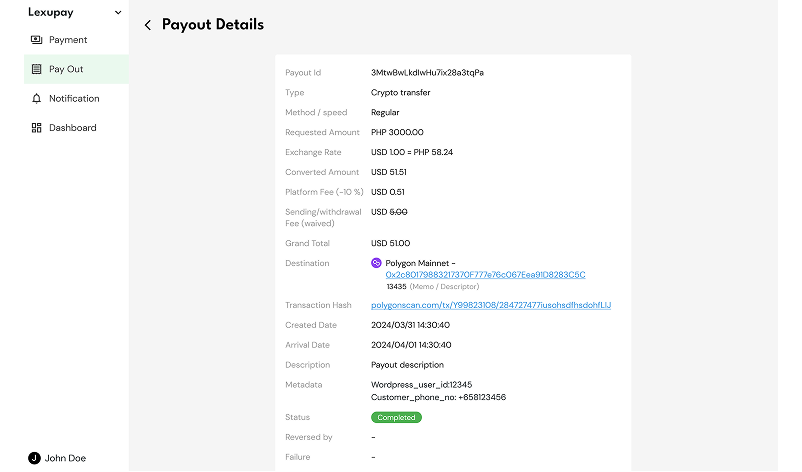
Completed: The payout status when the payment has been received by the recipient.
-
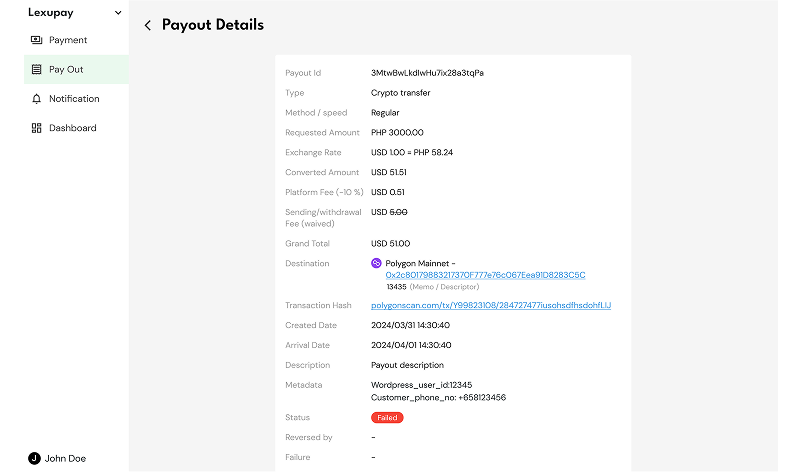
Failed: The payout status when the payment is not received by the recipient or cancelled by the admin at the client's request.
-
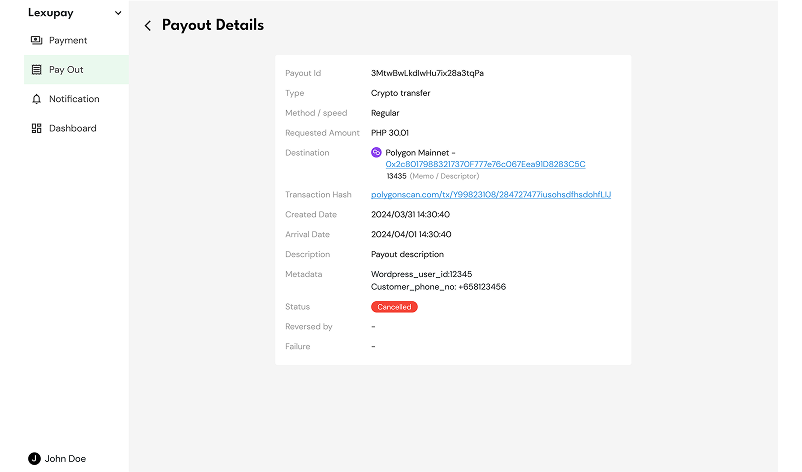
**Cancelled: **The payout status when the client or admin cancels the payment transfer while the payment is still pending.
State Transition Diagram
Updated 12 months ago