
Setting up new account
An account on Lexupay helps you manage and monitor your payment and transaction activities. Each user has an account containing personal and business information. You can access features like making transactions, joining organizations, managing API access, and integration. The account also lets you view transaction history, set payment preferences, and ensure security through proper authentication. Here are the instructions to register a new account on Lexupay.
Step 1: Sign in to create an account
- Open the Lexupay website
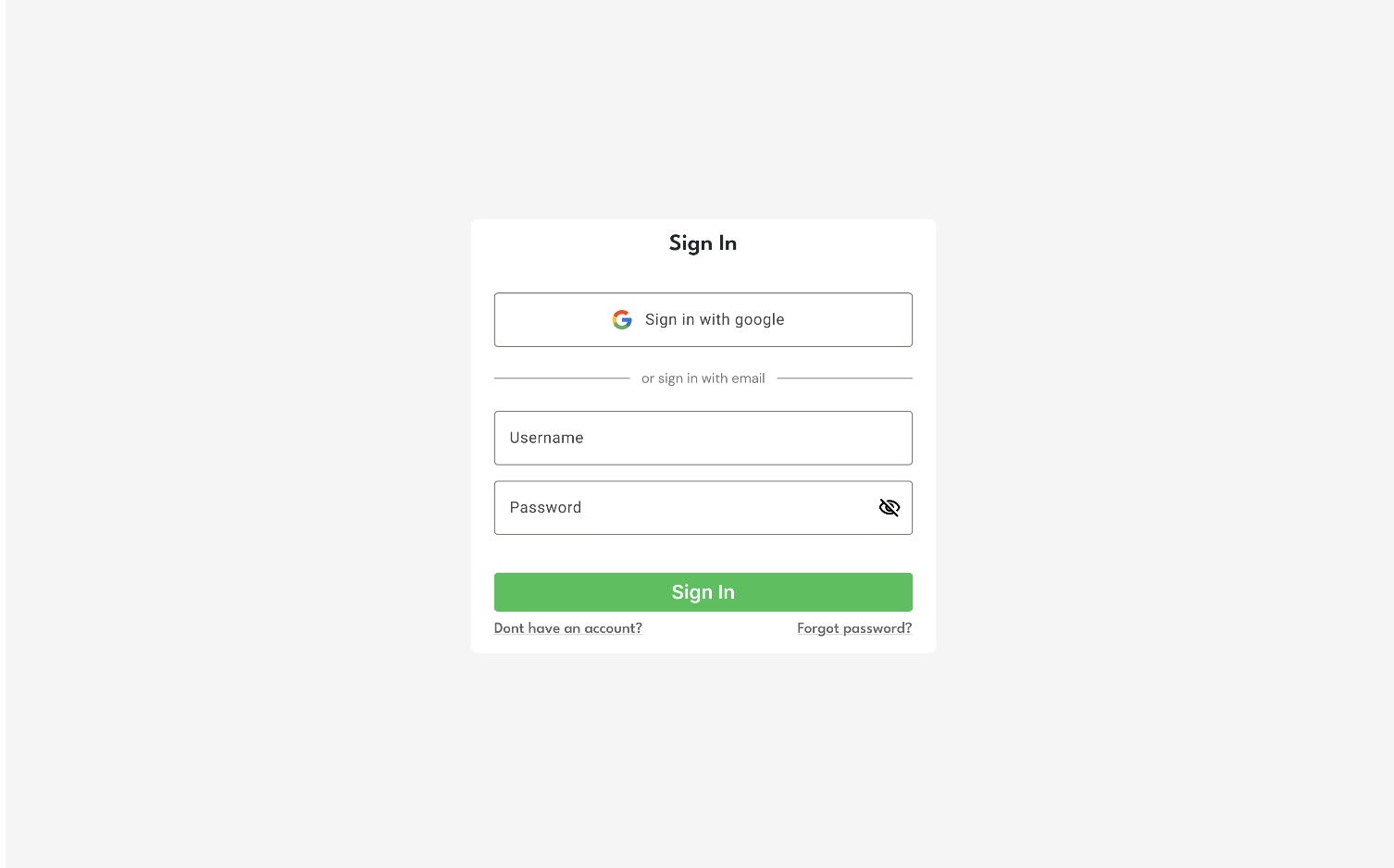
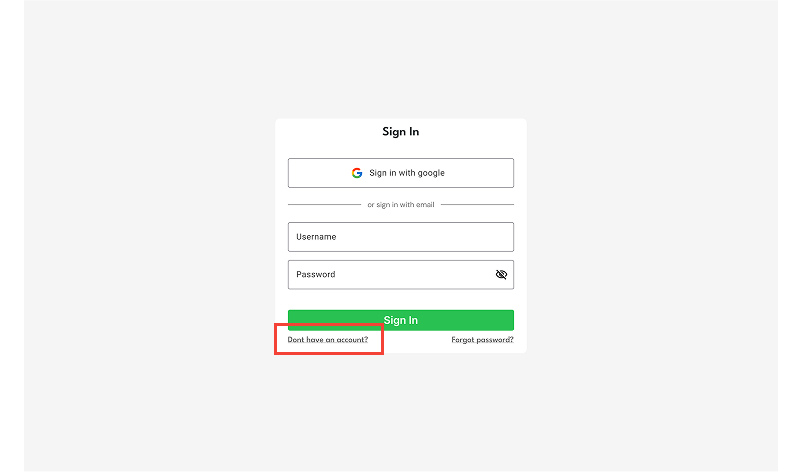
- On the Sign In page, select Don't have an account?
- On the Sign-Up page, enter a username and password, then select Create Account.
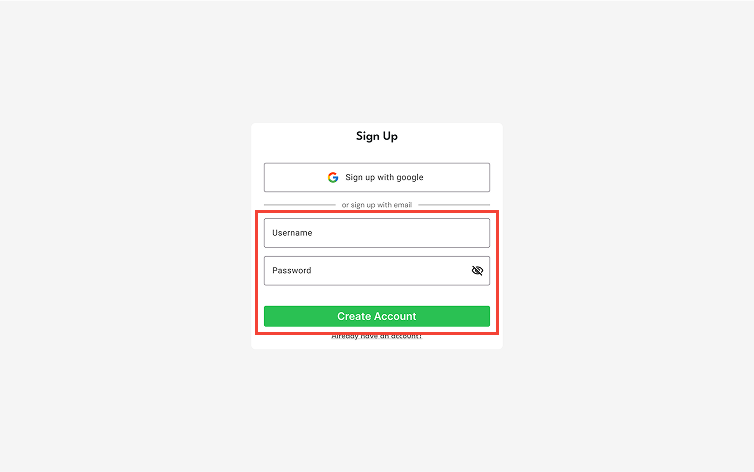
Make sure your account information is correct, especially your email address. If the email is incorrect, you won’t be able to access your account.
Alternatively, you can use your Google account by selecting Sign up with Google.
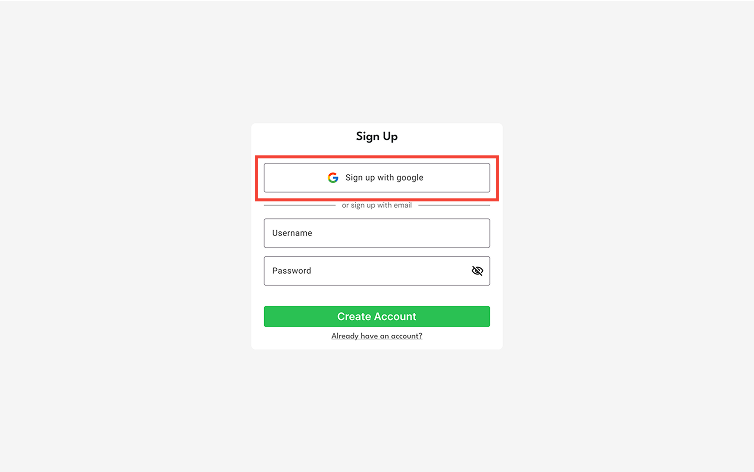
Then, choose your Google account.
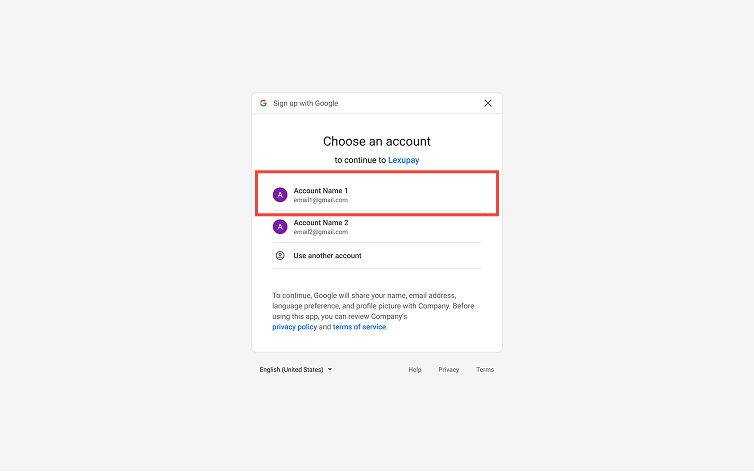
- Next, join an organization.
Here are a few ways to join an organization:
-
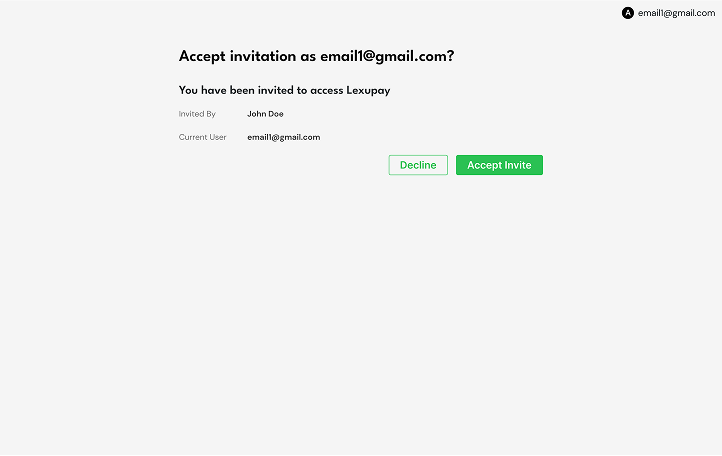
Invitation link from email: Accept the invite by selecting Accept Invite or decline by selecting Decline.
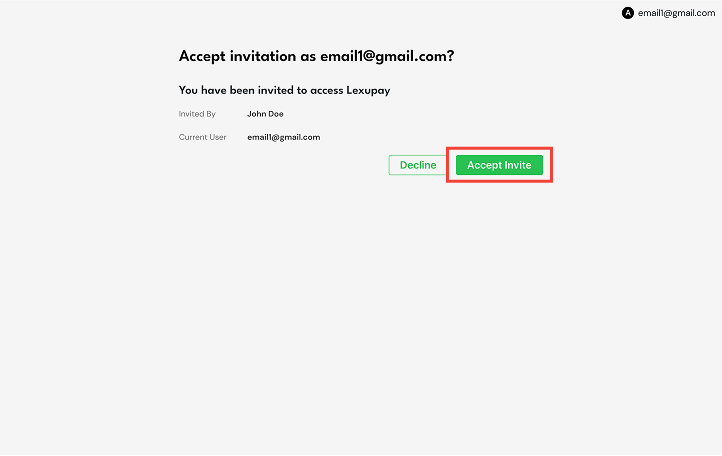
To leave the page, select Email and then Logout.
-
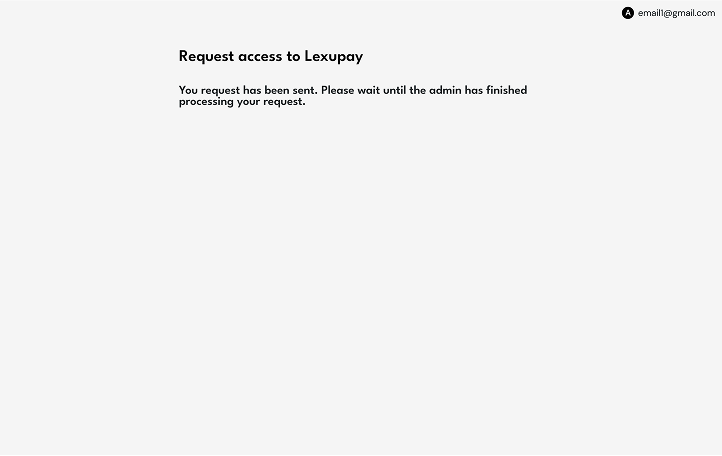
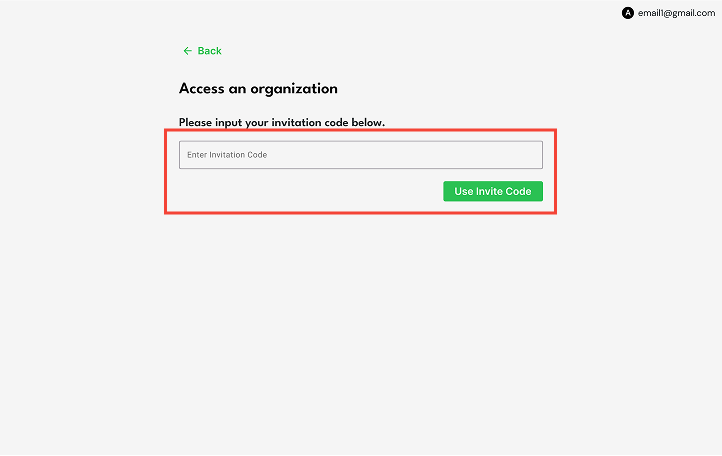
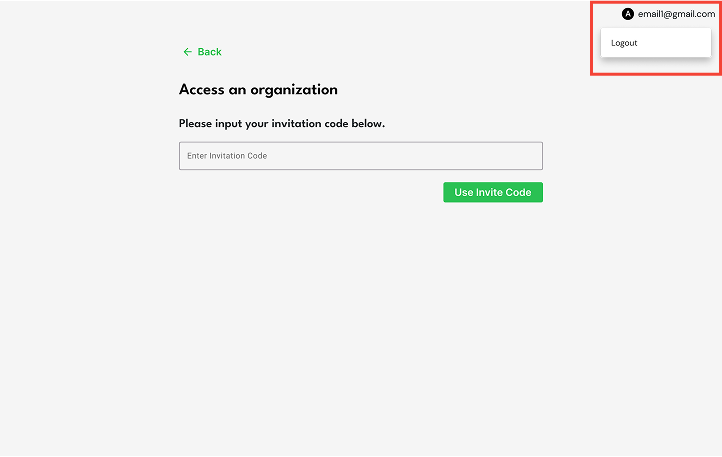
Organization link: If signing up using an organization's link (e.g., https://admin.scan.rampable.co/lexupay/payment/2345), enter the invite code if you have one, then select Use Invite Code or select Request Access to ask for access. Wait for the admin to process your request.
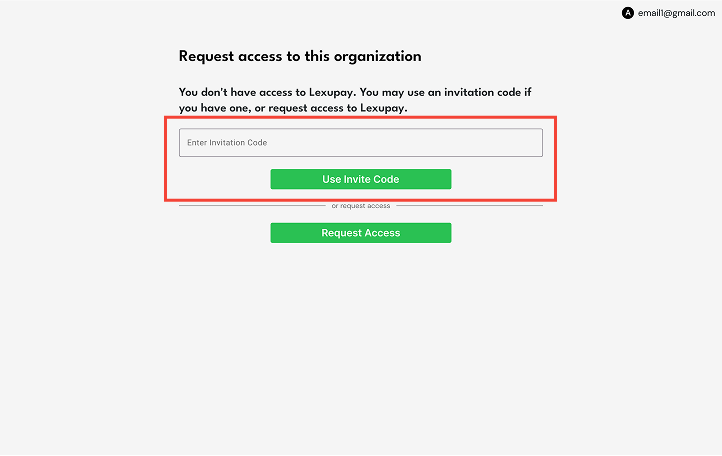
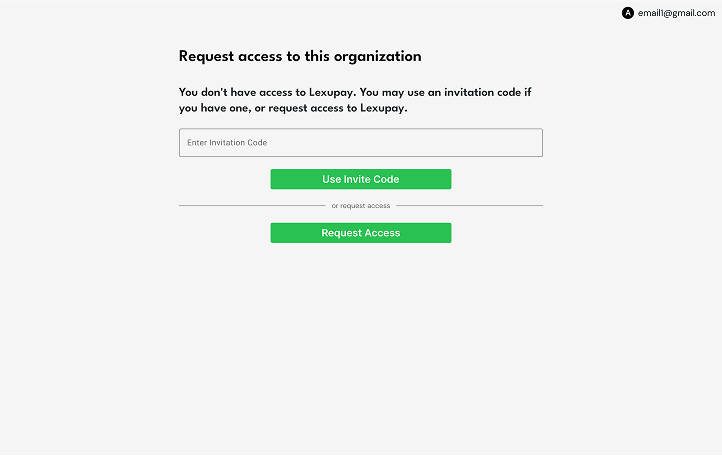
To leave the page, select Email and then Logout.
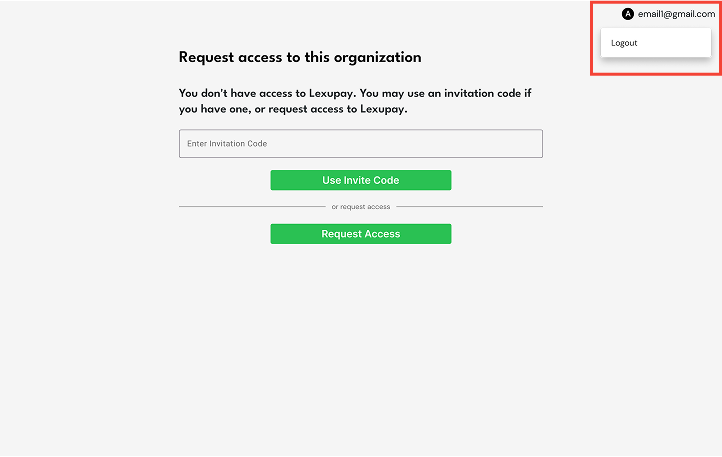
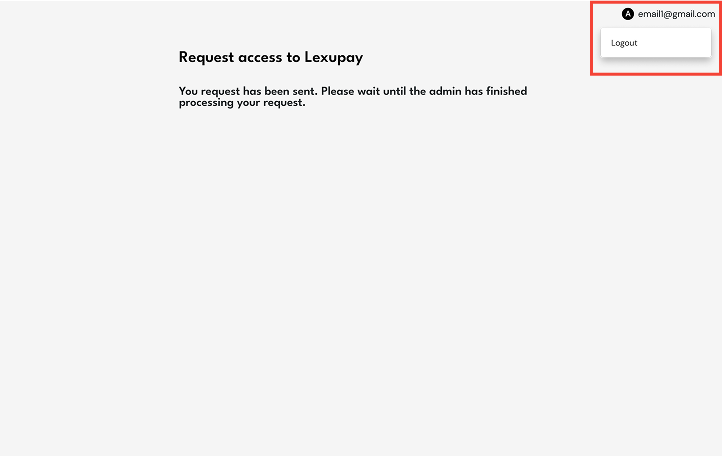
-
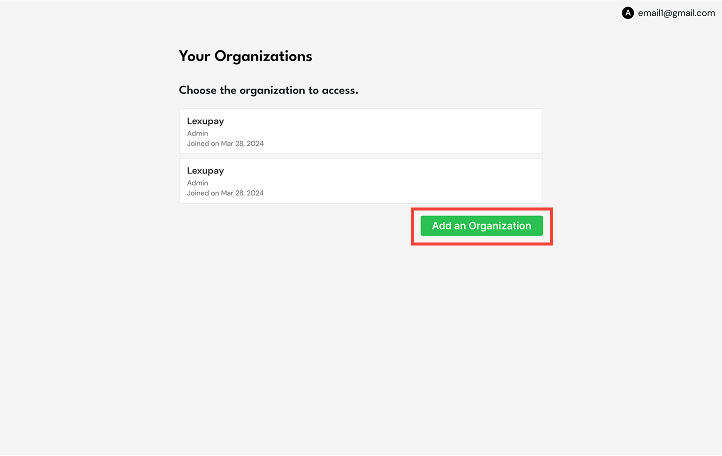
Have an existing organization: Choose the organization you want to join or add a new one by selecting Add an Organization and entering the invite code.
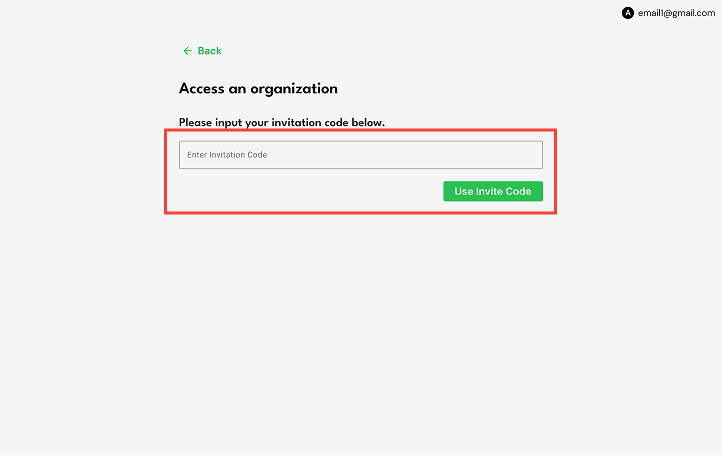
Select Back to return to the previous page.
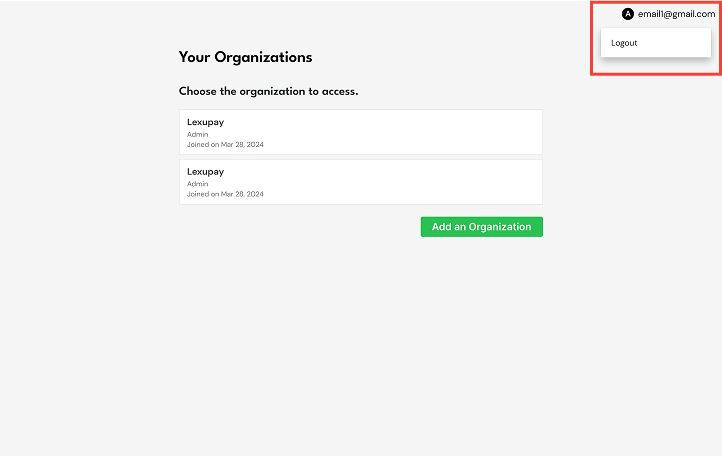
To leave the page, select Email and then Logout.
Step 2: Sign in with an Existing Account
- Open the Lexupay website.
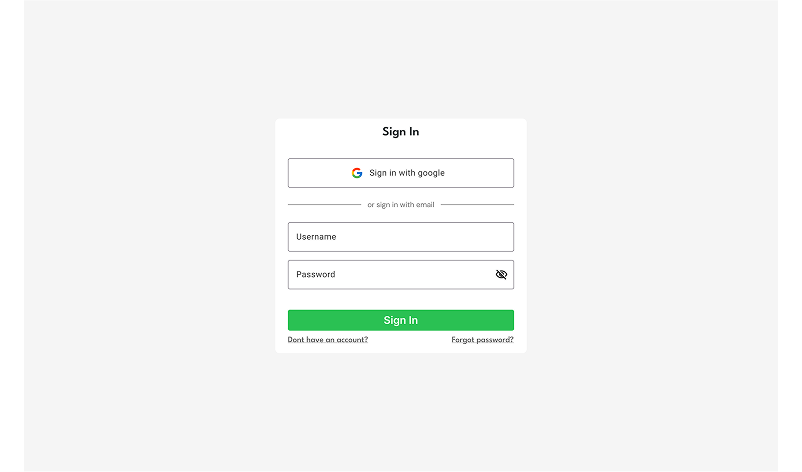
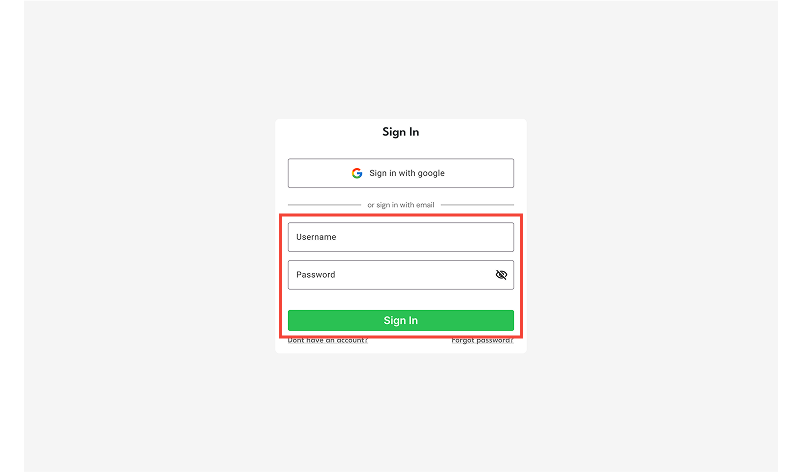
- Enter your email and password, then select Sign in.
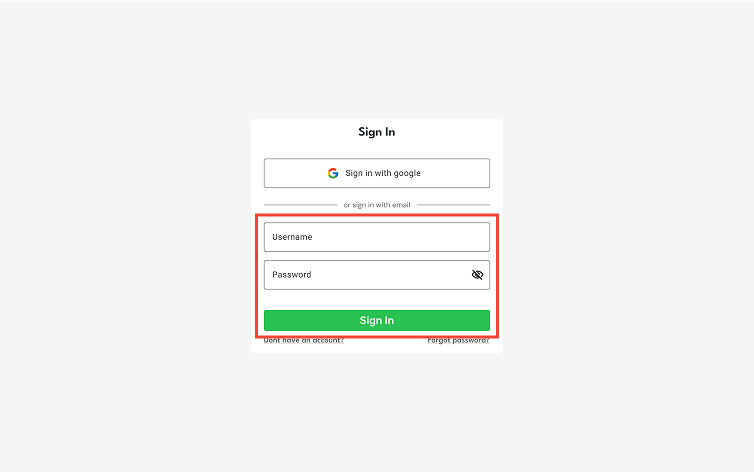
Make sure your account information is correct, especially your email address. If the email is incorrect, you won’t be able to access your account.
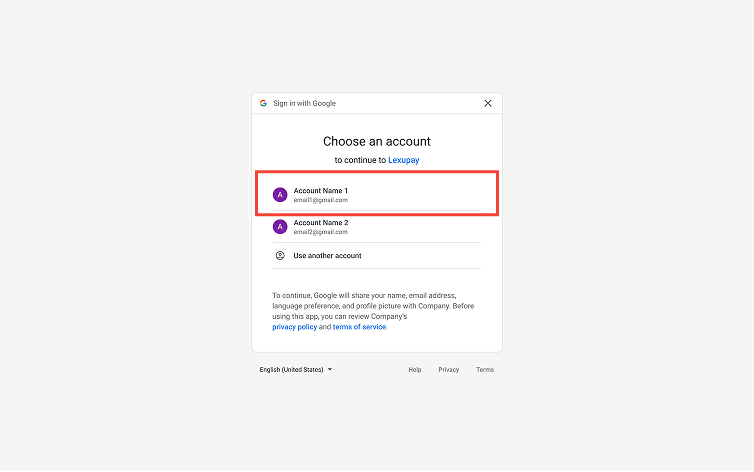
Alternatively, you can use your Google account by selecting Sign in with Google.
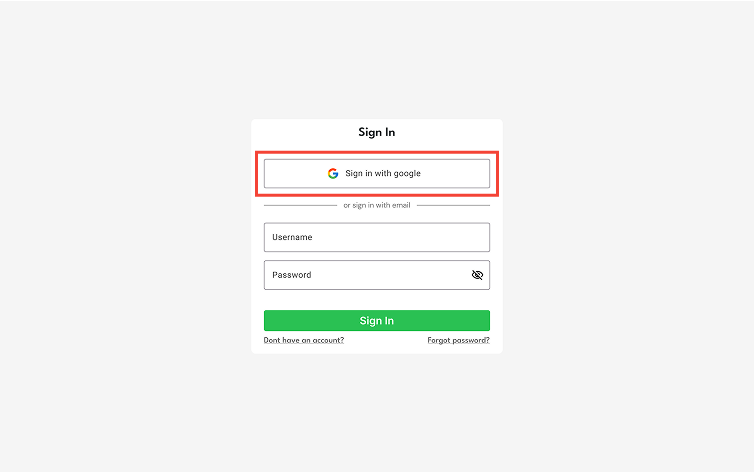
Then, choose your Google account.
- Next, join an organization.
Here are some ways to join the organization:-
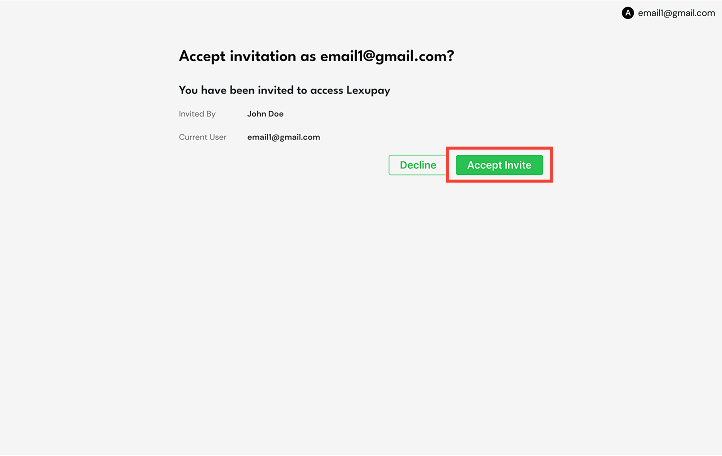
Invitation link from email: Accept the invite by selecting Accept Invite or decline by selecting Decline.
-
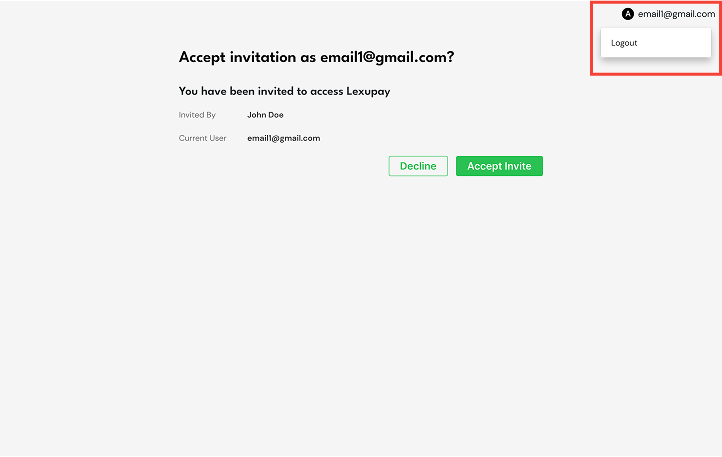
To leave the page, select Email and then Logout.
-
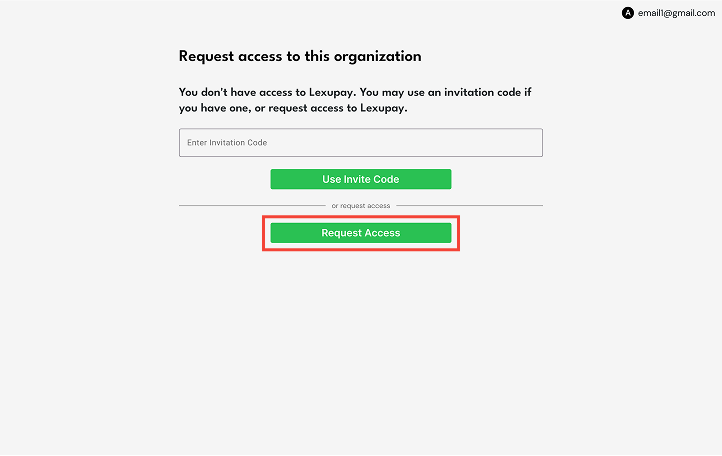
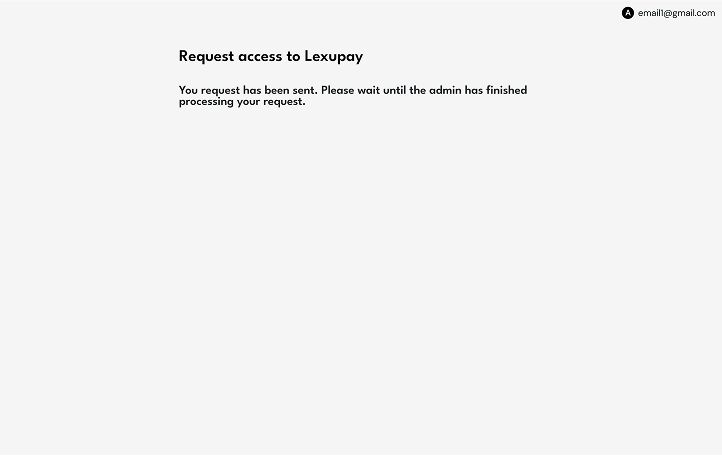
Organization link: If signing up using an organization's link (e.g., https://admin.scan.rampable.co/lexupay/payment/2345), enter the invite code if you have one, then select Use Invite Code or select Request Access to ask for access. Wait for the admin to process your request.
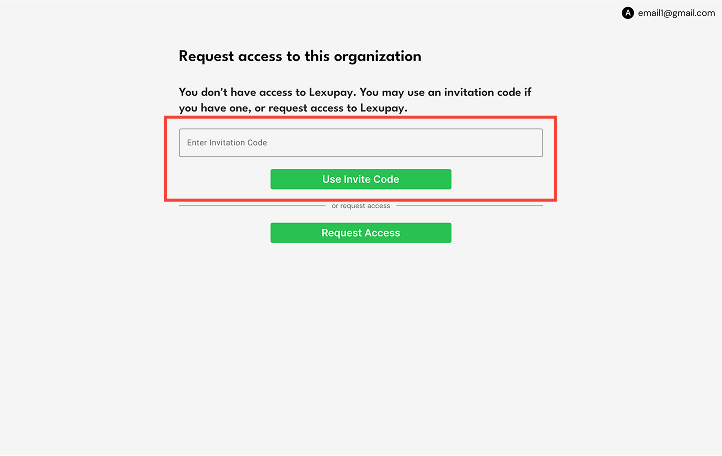
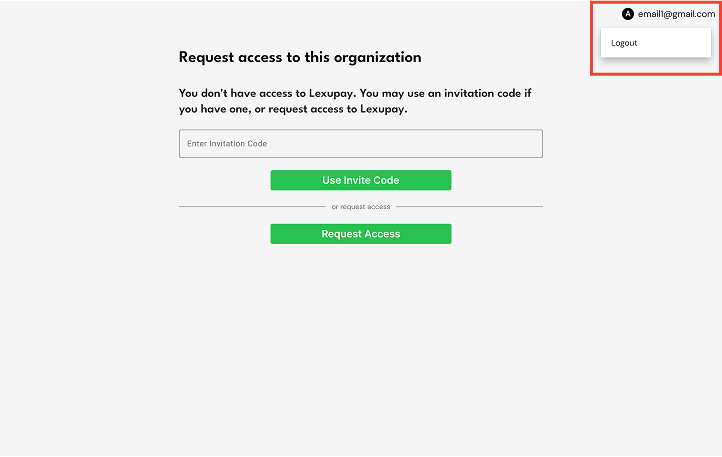
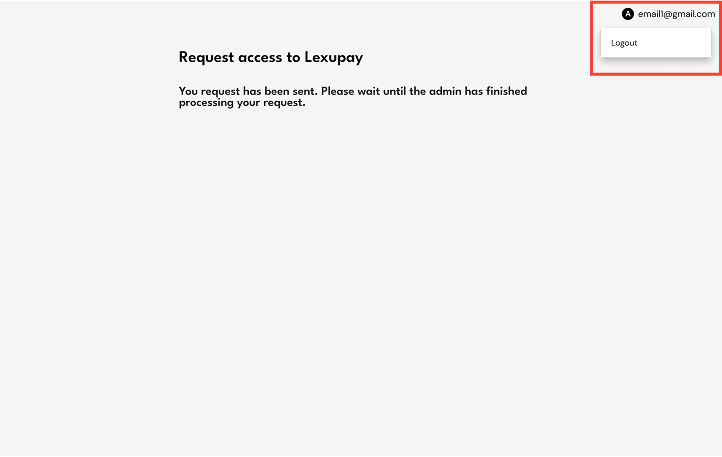
To leave the page, select Email and then Logout.
-
Have an existing organization?: Choose the organization you want to join or add a new one by selecting Add an Organization and entering the invite code.
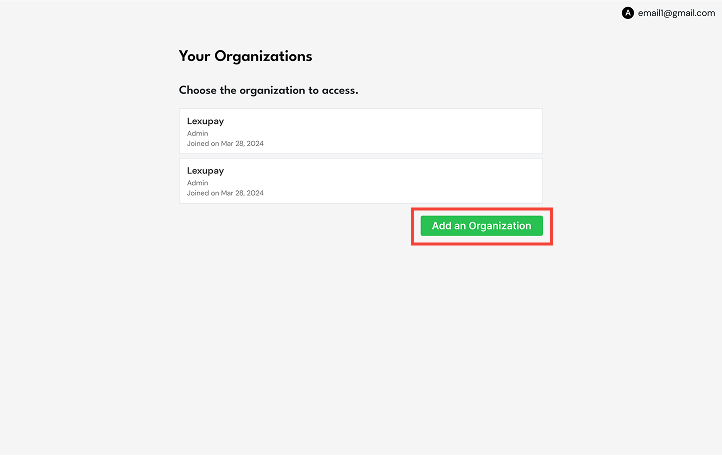
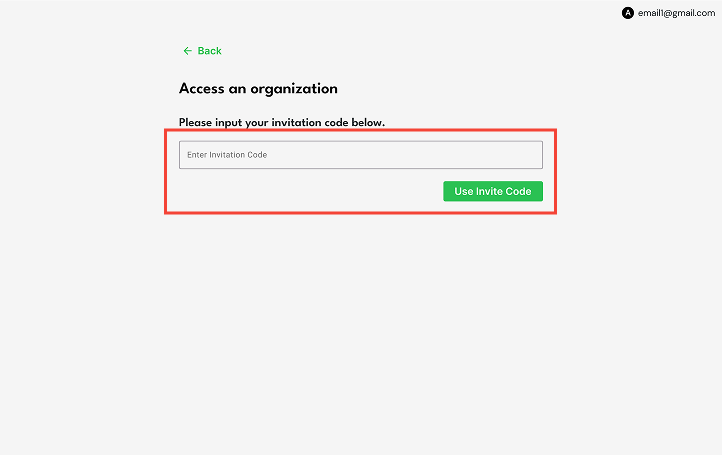
Select Back to return to the previous page.
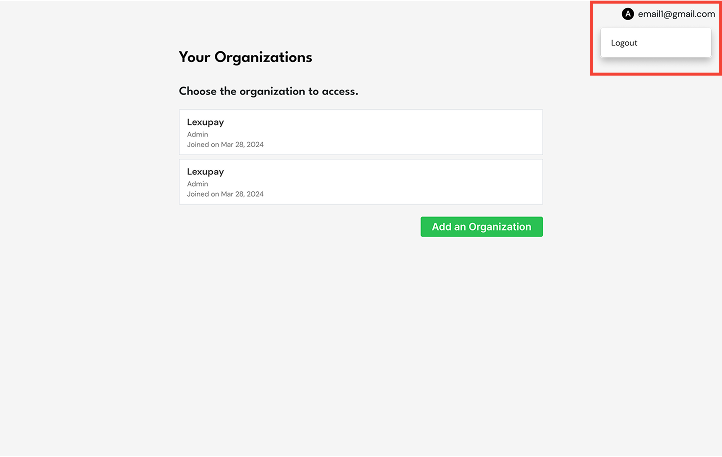
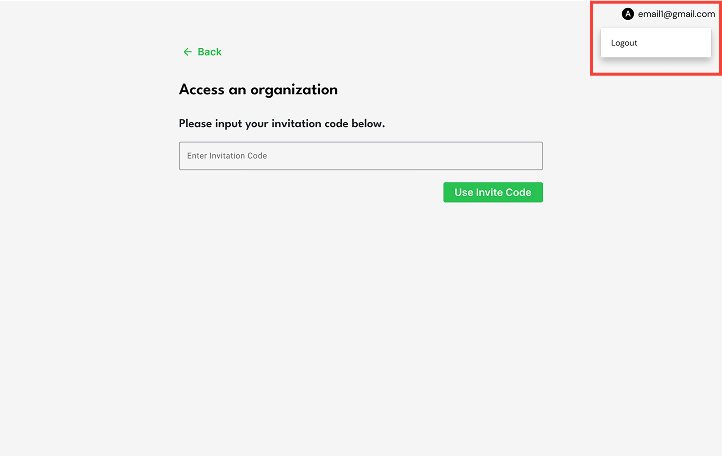
To leave the page, select Email and then Logout.
Step 3: How to Sign In when you have forgotten your password
-
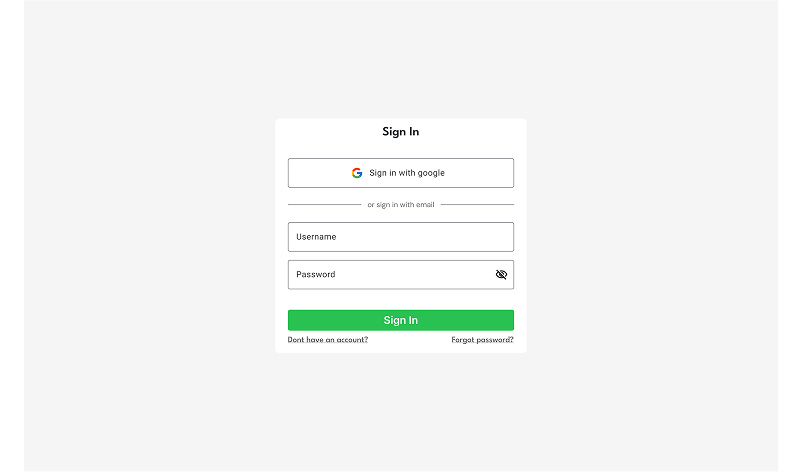
Open the Lexupay website.
-
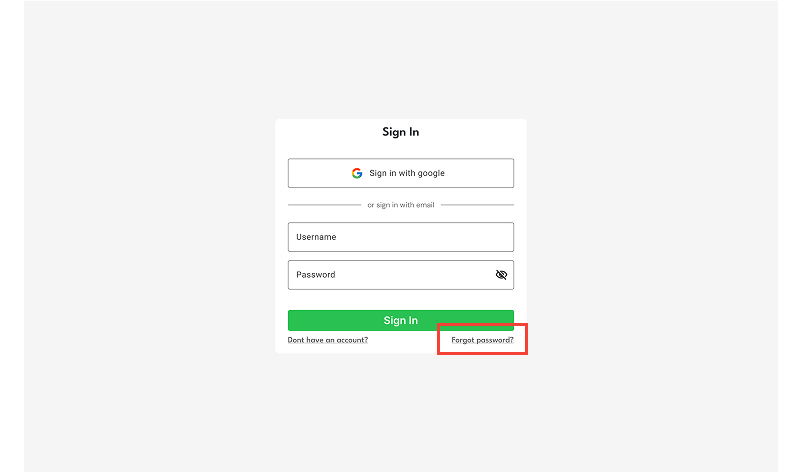
On the Sign In page, select Forgot password?
-
In the Forgot Password? dialog, enter your email and select Reset Password.
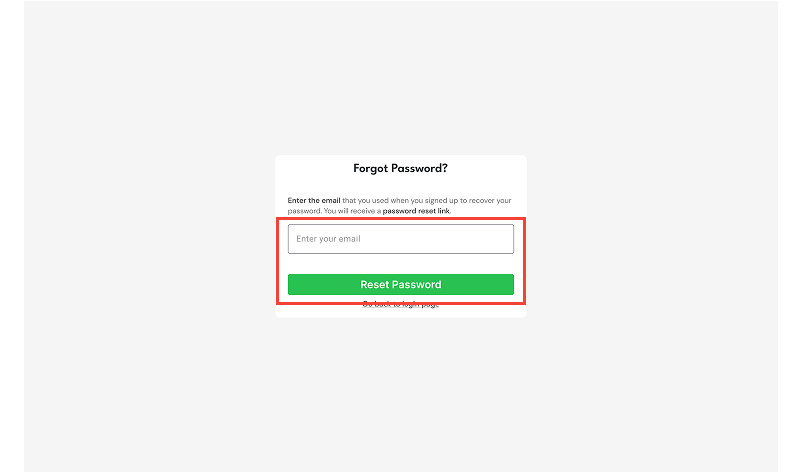
Make sure your email address is correct. If the email is incorrect, the password cannot be reset.
-
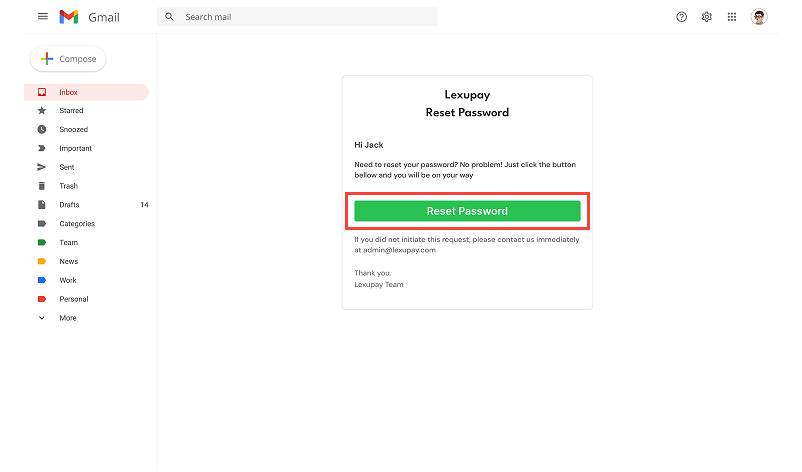
Next, open the Reset Password link you received via email.
-
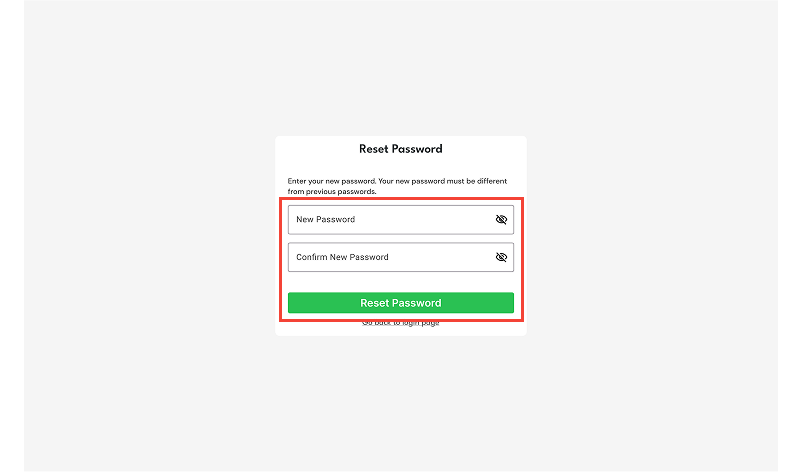
On the Reset Password page, enter New Password and Confirm New Password, then select Reset Password.
-
After successfully resetting your password, sign in again with your email and new password.
Updated about 1 year ago